

The Getting started checklist
Who can see it: Owners and Office Managers.
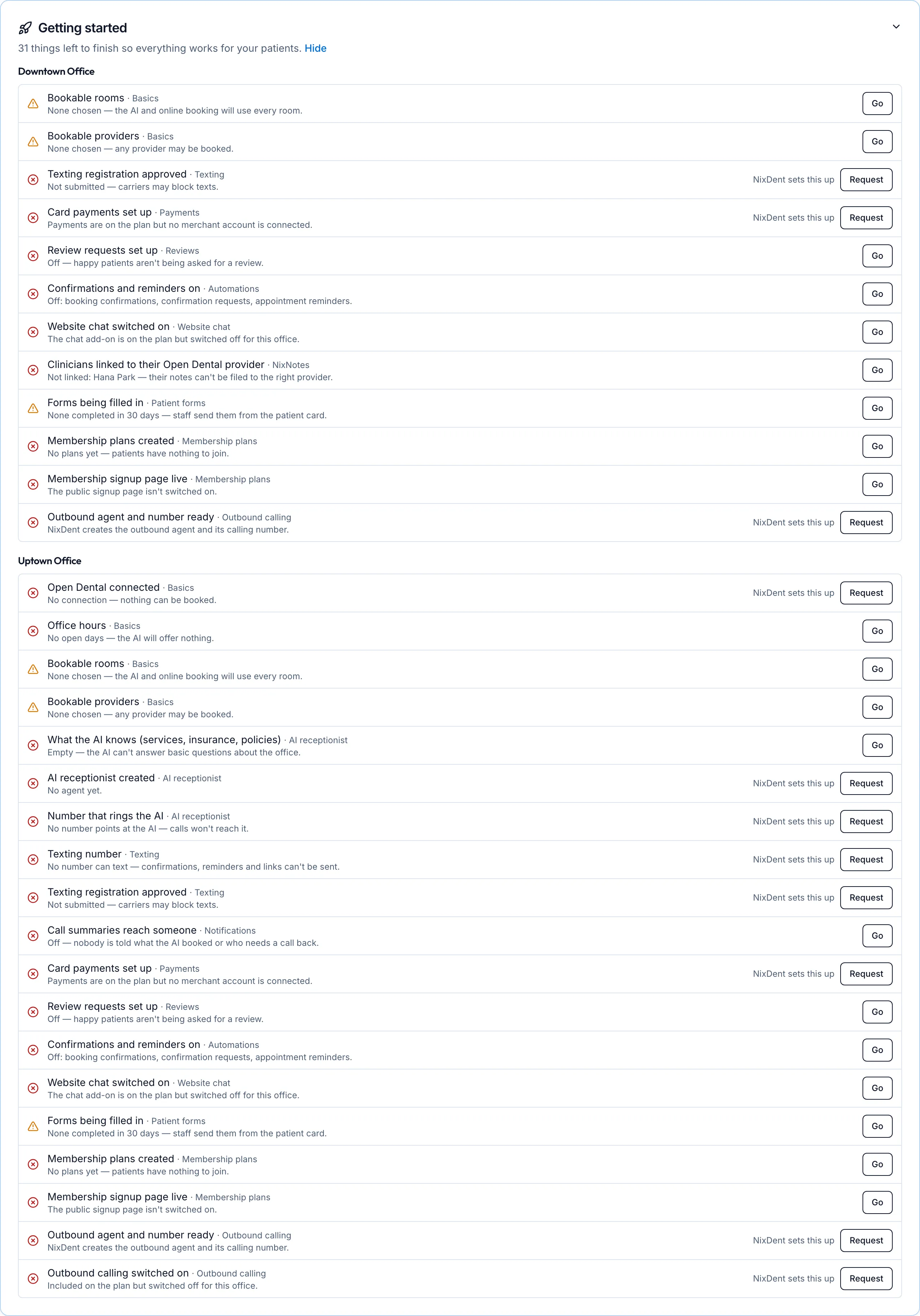
At the top of Settings there’s a Getting started card. It lists, office by office, what is still missing or worth checking. It disappears when nothing is left.
The card starts closed as a one-line summary. Click it to open or close the list; your choice is remembered on that computer.
Reading the list
Section titled “Reading the list”- A red circle means something is missing, and patients will notice. For example, no office hours means the AI can’t offer any times.
- A yellow triangle means it works, but check it’s what you want. For example, with no bookable rooms chosen, every room can be booked.
- The small grey word after each item is the area it belongs to, such as Basics, Texting or Reviews.
Finishing an item
Section titled “Finishing an item”- Go takes you to the page where you fix it. Make the change, save, and the item drops off the list.
- NixDent sets this up with a Request button means only NixDent can do it. Examples are connecting Open Dental, creating the AI receptionist, phone numbers, texting registration, and the merchant account for card payments. Click Request and the NixDent team gets a ticket with the details filled in.