

Settings at a glance
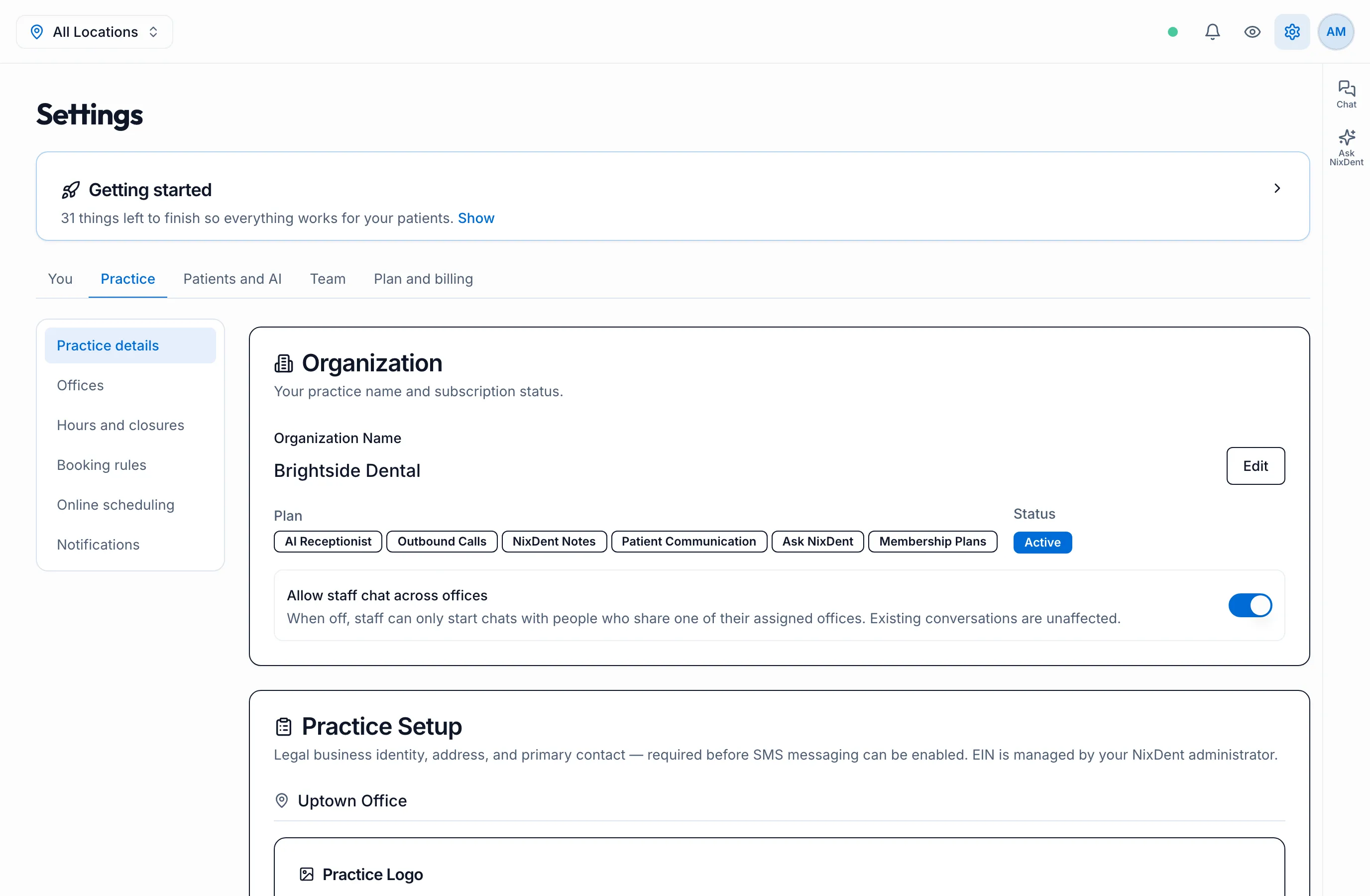
Click the gear at the top right to open Settings. Pick an area from the tabs across the top, then a page from the list on the left. On a phone, the list shows as a row of buttons above the page.
| Area | Pages | Who can change it |
|---|---|---|
| You | My profile · Sign-in and security | Everyone, for themselves |
| Practice | Practice details · Offices · Hours and closures · Booking rules · Online scheduling · Notifications | Owners and Office Managers |
| Patients and AI | AI receptionist (what to give it) · Forms · Automations | Owners and Office Managers |
| Team | Everyone who works at the practice. See Add a person | Owners and Office Managers |
| Plan and billing | Your plan and NixNotes seats | Owners |
Settings opens on Practice details.
Other people can open most pages to look, but can’t change anything. They see the note “You can view these settings. Only the practice owner or office manager can change them.”
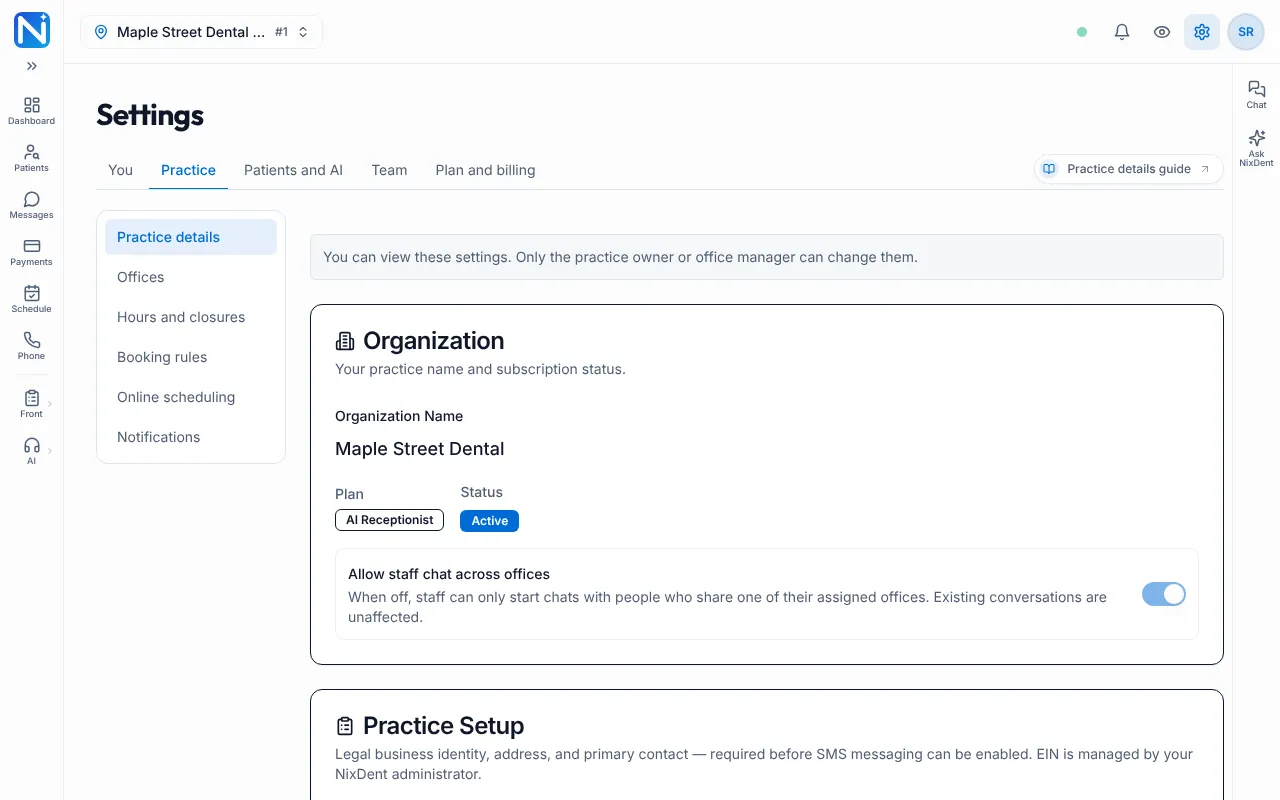
Many pages show a “guide” pill at the top right that opens the matching Help Center page in a new tab.
One office at a time
Section titled “One office at a time”Pages that differ per office (hours, booking rules, notifications, the AI receptionist) have an Office picker at the top right. Check it before you change anything, so you’re editing the right office.
Things only NixDent can change
Section titled “Things only NixDent can change”Some settings show a lock, or say Set up by NixDent. Examples are the AI’s voice and phone numbers, and scheduling rules NixDent locked for an office. A locked setting reads “Locked by NixDent for this office. Contact NixDent support to change it.” Use Request and tell us what you need.
Recent changes
Section titled “Recent changes”At the bottom of the AI receptionist page, a Recent changes list shows who changed an AI-related setting and when, including changes made by NixDent.