

Add a person
Who can do this: Owners and Office Managers.
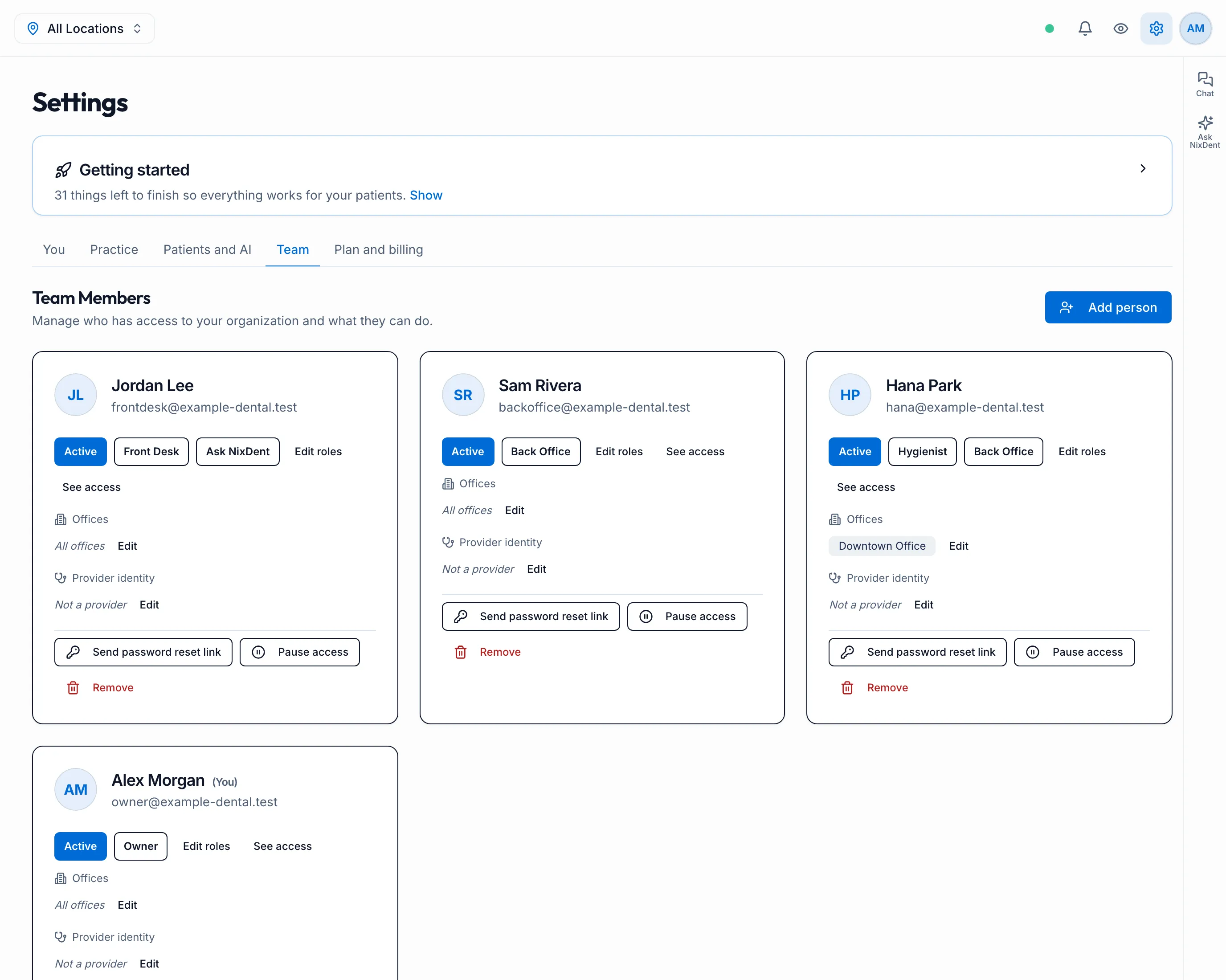
Go to Settings → Team and click Add person.
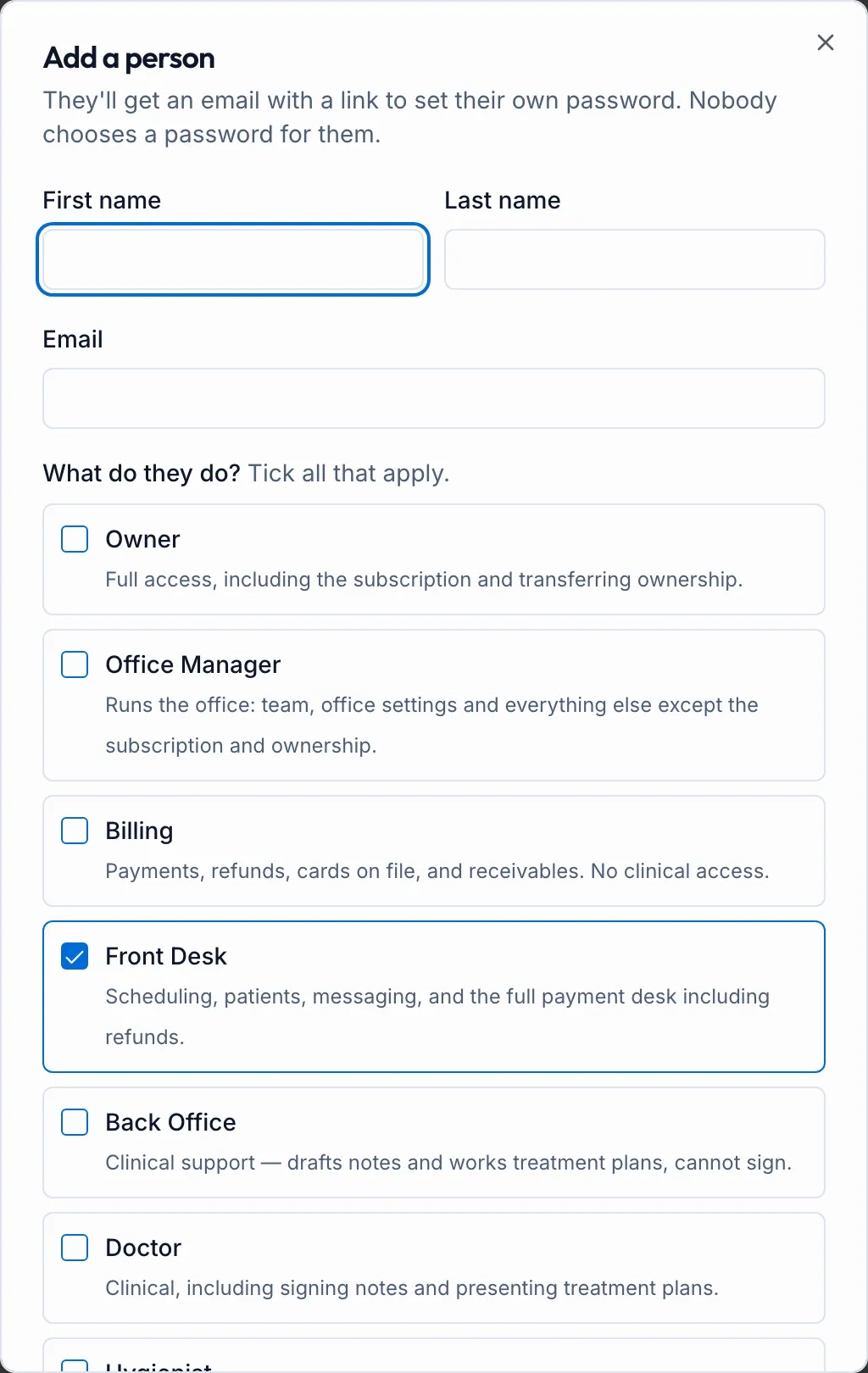
- Enter their first name, last name and email.
- Under What do they do?, tick every role that applies. Someone who is a hygienist and also helps at the front desk gets both. See Roles and what they allow.
- If they should have Ask NixDent, switch it on under Extra access.
- If you have more than one office, tick the offices they work at under Which offices?. Leave them all unticked for every office.
- Click Add person.
They get an email, Your NixDent account is ready, with a Set your password button. Nobody chooses a password for them, including you and NixDent. The link expires, so ask them to use it soon. It opens a Set new password page. See Sign in and reset your password.
Each person needs at least one job role. Ask NixDent is extra access, not a job.
If you add someone who already has a NixDent login, for example because they also work at another practice, they get a different email, You’ve been added to your practice. It tells them to sign in and switch practice. Their password is not changed. If they are already on your team, NixDent says “This person is already on the team. Use Edit roles to change what they can do.”
If they didn’t get the email
Section titled “If they didn’t get the email”Ask them to check spam, and that the address is spelled correctly. The email comes from NixDent, not from your practice. If it still doesn’t arrive, contact NixDent support and ask for it to be sent again.
Once a person has set a password, the button on their card reads Send password reset link. It asks “Email the person a link to reset their password?” before sending. See Pause, remove, or help someone sign in.
Offices
Section titled “Offices”Each card shows the person’s Offices. All offices means every office, including ones you add later. If you leave all offices unticked when you add someone, they see every office. Click Edit to limit them to specific offices. They then only see patients, schedules and reports for those offices.
Provider identity
Section titled “Provider identity”For clinicians, Provider identity links the person to their provider in Open Dental. It must be set for their clinical notes to be filed under the right provider. Click Edit and pick them from the list. Choose Not a provider here for people who don’t see patients. The checklist item Clinicians linked to their Open Dental provider tells you if a doctor or hygienist still needs linking.