

Booking rules — rooms and providers
Who can do this: Owners and Office Managers, unless NixDent has locked the rules for an office.
Go to Settings → Practice → Booking rules, and pick the office at the top right.
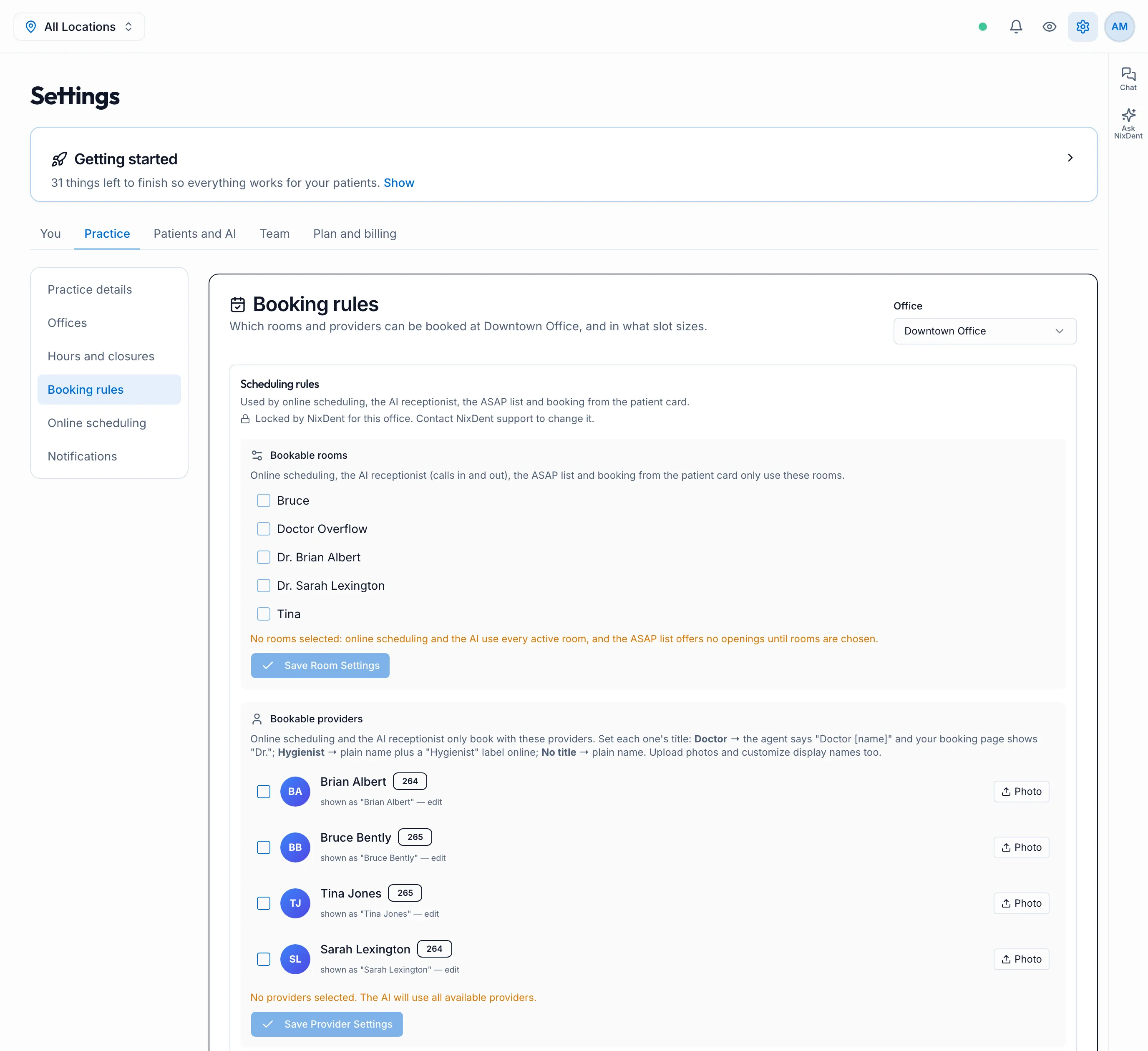
These rules apply everywhere NixDent books: online scheduling, the AI receptionist (calls in and out), the ASAP list, and booking from the patient card.
Bookable rooms
Section titled “Bookable rooms”Tick the rooms (operatories from Open Dental) that patients may be booked into, then click Save Room Settings.
Bookable providers
Section titled “Bookable providers”Tick the providers who can be booked, then click Save Provider Settings. With none ticked, the AI uses every available provider.
For each provider you can also:
- Set a title. Doctor: the AI says “Doctor Albert” and your booking page shows “Dr.”. Hygienist: plain name with a “Hygienist” label online. No title: plain name.
- Edit the display name, for example “Dr. Sarah” instead of the full name from Open Dental.
- Upload a photo for the online booking page.
“Locked by NixDent”
Section titled ““Locked by NixDent””If you see Locked by NixDent for this office, the rules were set during your setup and can only be changed by NixDent. Use Request to ask for a change.