

What your patient sees when they pay a link
When you send a payment request, the patient opens a page that shows what they owe and takes a card. This page explains each screen so you can help a patient over the phone.
Who can do this: Owners, Office Managers, Billing and Front Desk send payment requests. See Take a payment.
What the patient sees
Section titled “What the patient sees”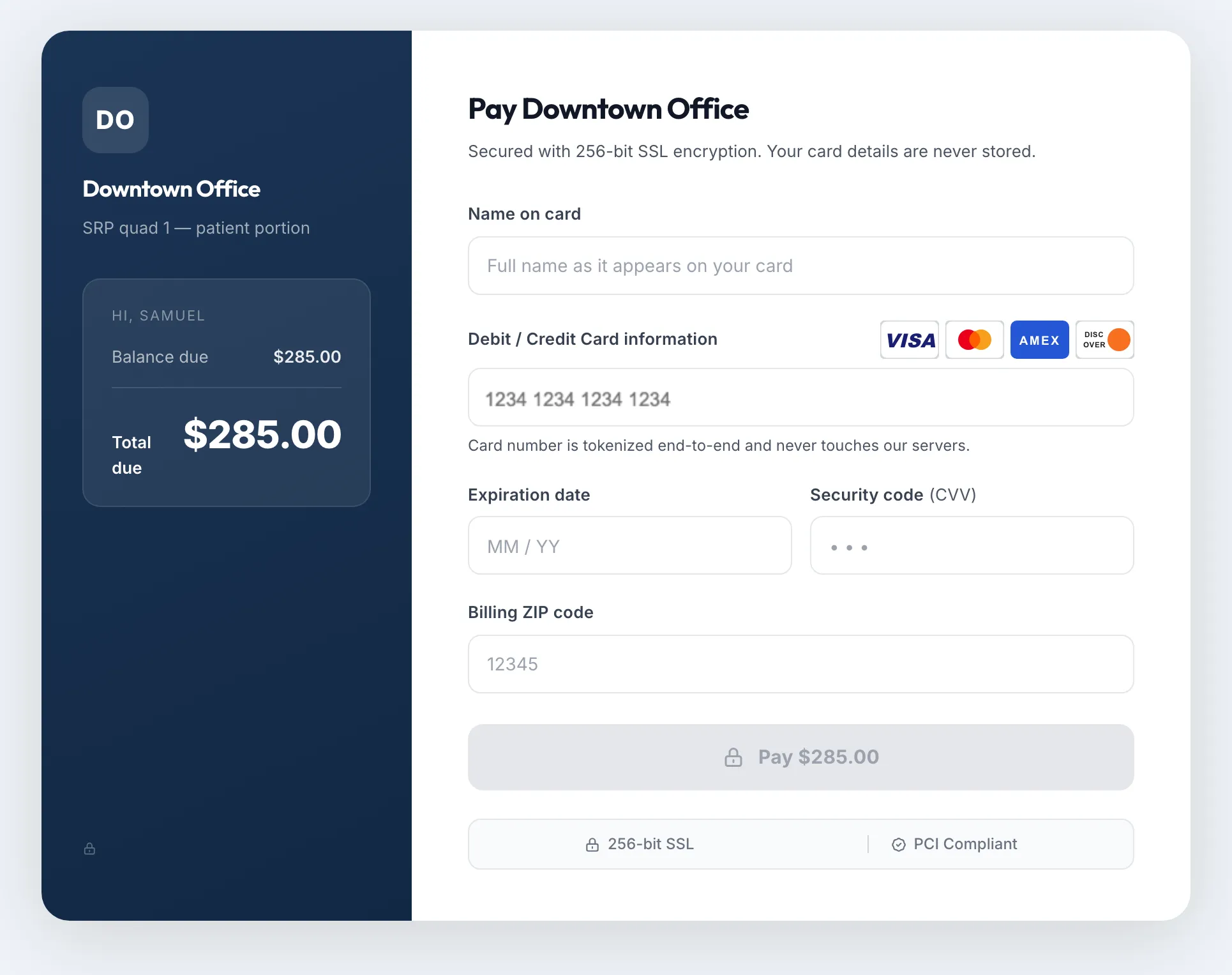
- Top or left of the page: your logo or initials, your office name, your description (for example “Balance from visit on 5/1”), “Hi, {first name}”, the Balance due and Total due. Your address, phone and email are shown below.
- The card form: the heading Pay {office name}, then Name on card, Debit / Credit Card information, Expiration date, the security code and Billing ZIP code.
- The Pay button, which stays grey until every field is complete. While it works it says Processing….
On a phone the amount sits on top and the card form below it.
If the card covers only part
Section titled “If the card covers only part”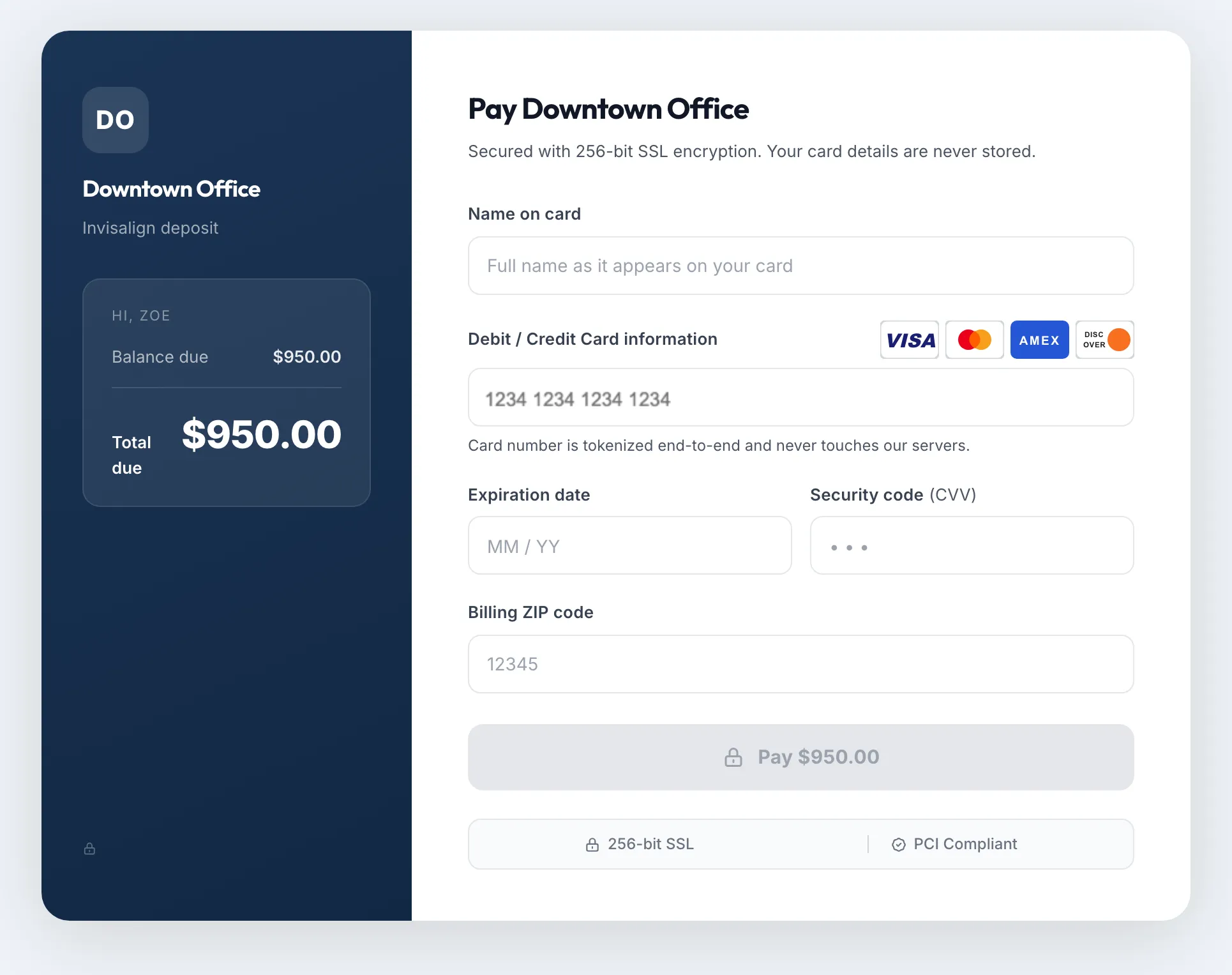
Some health-savings cards pay only part of the balance. The page then shows a blue box saying how much was paid and how much is left, and says “Your card covered part of this balance. Enter another card below to pay the rest.” The part that was paid is kept. The patient enters a second card for the remainder.
After paying
Section titled “After paying”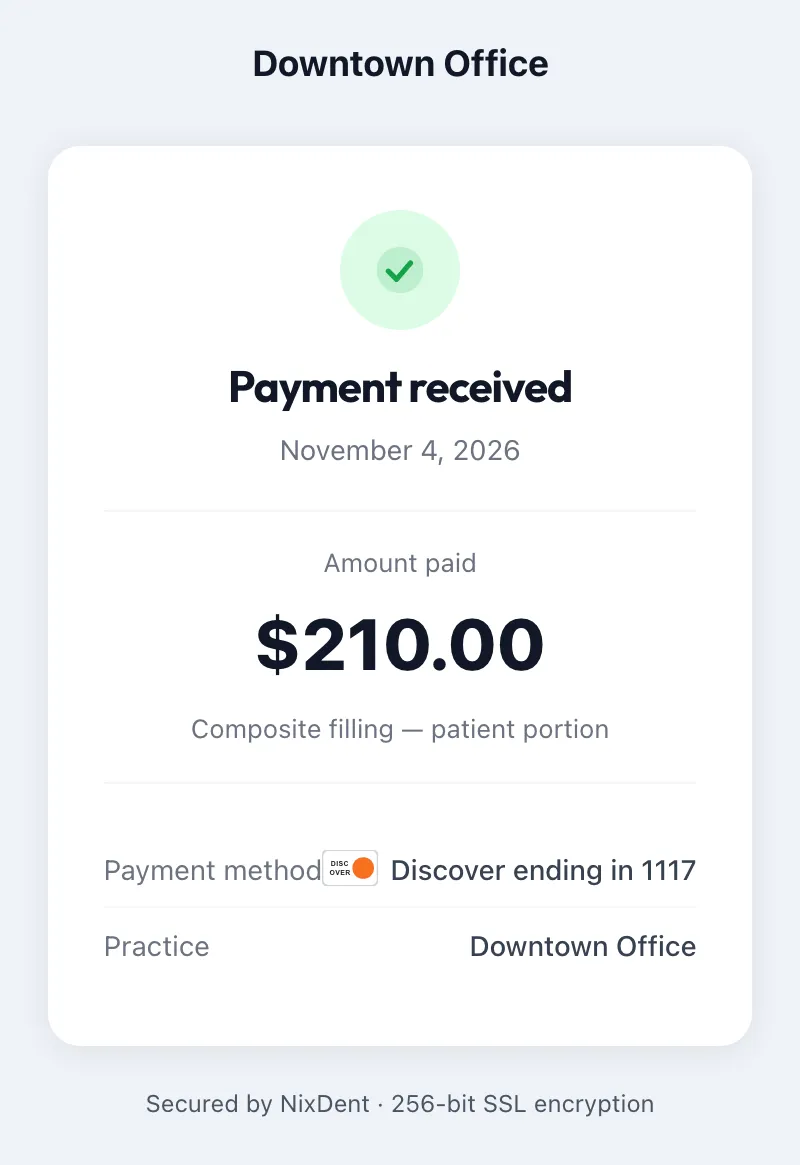
The patient sees Payment received with the date, the amount, the description, the card brand and last four digits, a Transaction ID, your practice name, and your contact details under Questions? Contact us. If you have their email, they’re also emailed a receipt. Opening the link again after it was paid shows the same receipt.
Common problems
Section titled “Common problems”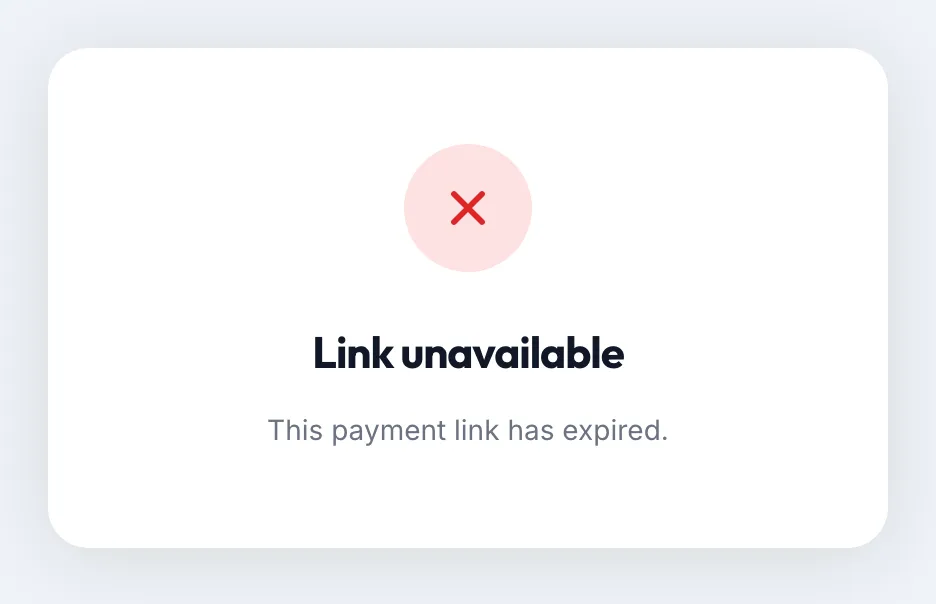
“Link unavailable”. The page says “This payment link has expired.” (or “This payment link is no longer active.” for a cancelled request). Send a new request. Resend repeats the same link, so for an old request use Send Payment Request again.
The card was declined. The patient sees the reason on the page and can try another card. The attempt shows under Declined on Payments → Payments.
The patient says the Pay button won’t turn on. All of the card boxes, the expiry date, the security code and the ZIP code need to be filled in. Ask them to check each one.
What to do next
Section titled “What to do next”- Watch the link under Payments → Pay links.
- Post it to the ledger from Payments → Payments if it didn’t go automatically. See Payments, receipts and refunds.