

Take a payment
Who can do this: Owners, Office Managers, Billing and Front Desk.
Click Payments in the left menu. The Overview page opens. Pick your office from the menu next to Take payment.
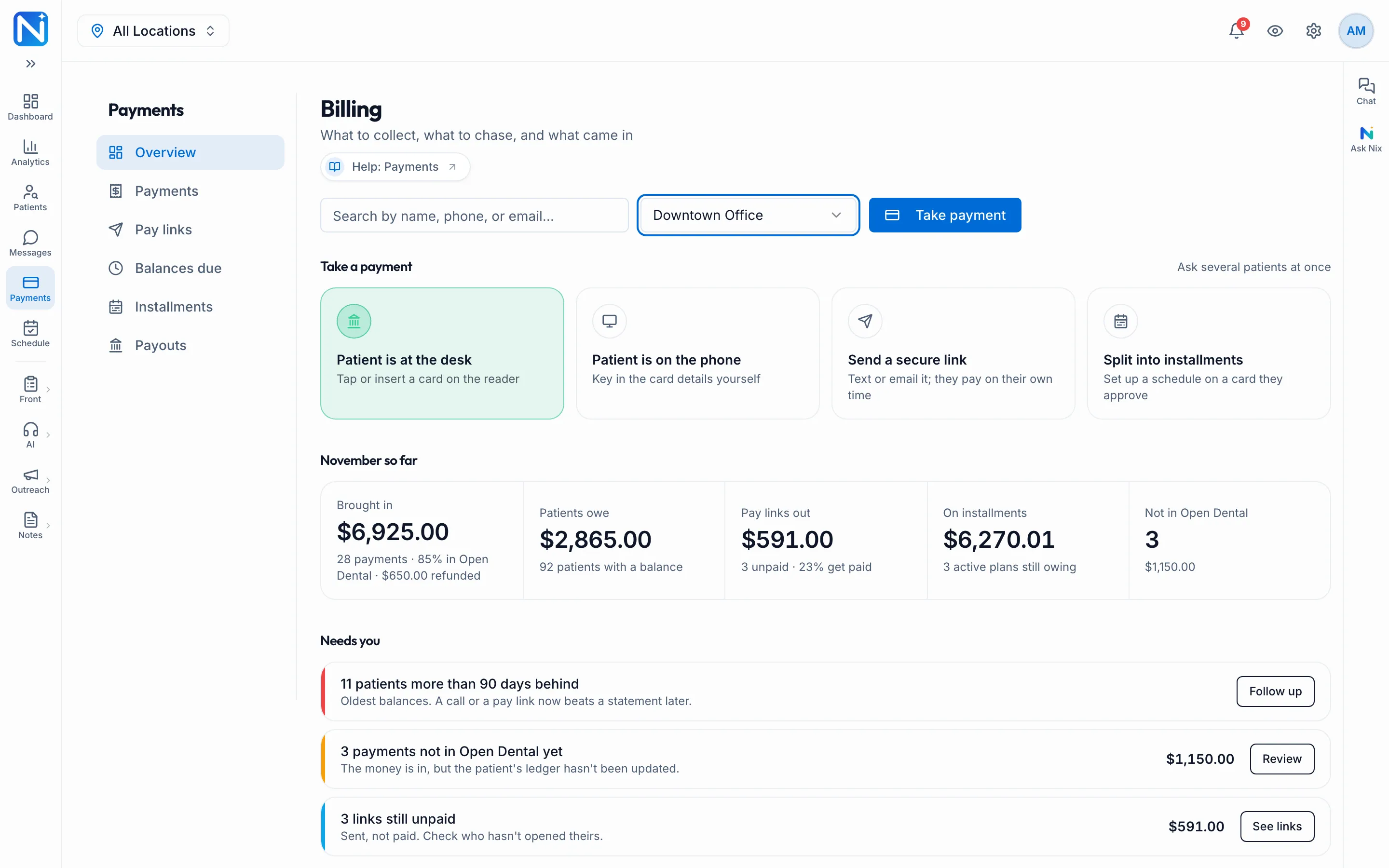
Start a payment
Section titled “Start a payment”There are three ways to begin:
- Click Take payment. A window asks How are they paying?
- Click one of the four tiles on the Overview.
- Type the patient’s name, phone or email in the search box at the top, then pick them. A bar appears that reads Taking payment from the patient’s name and what they owe. Click how they’re paying, or Not them to start over.
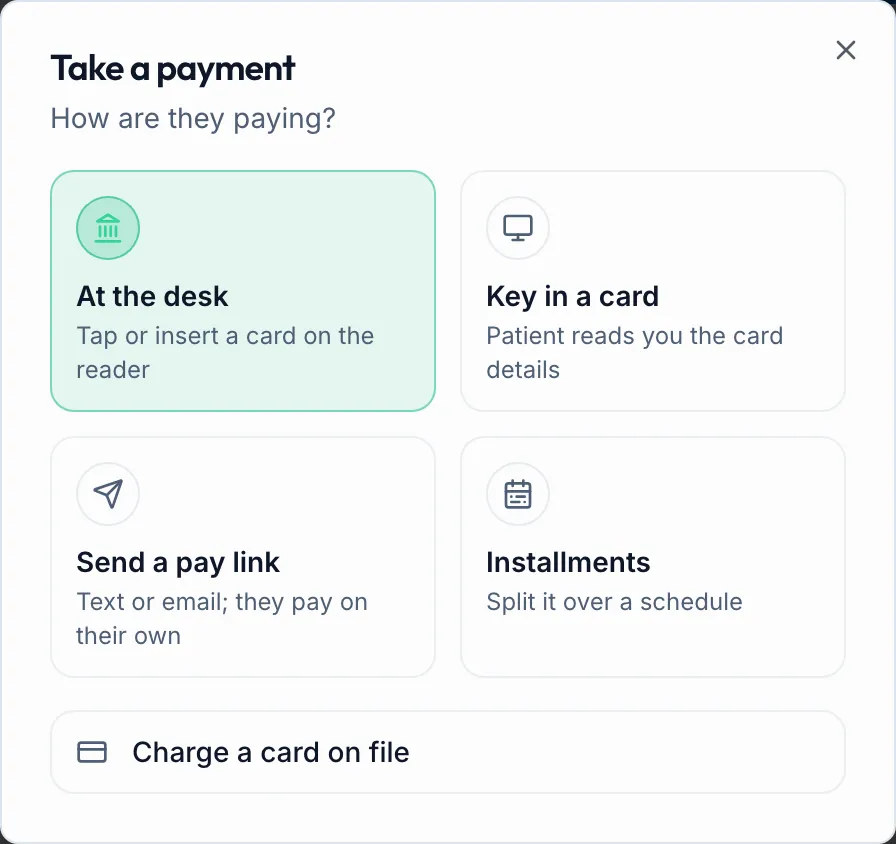
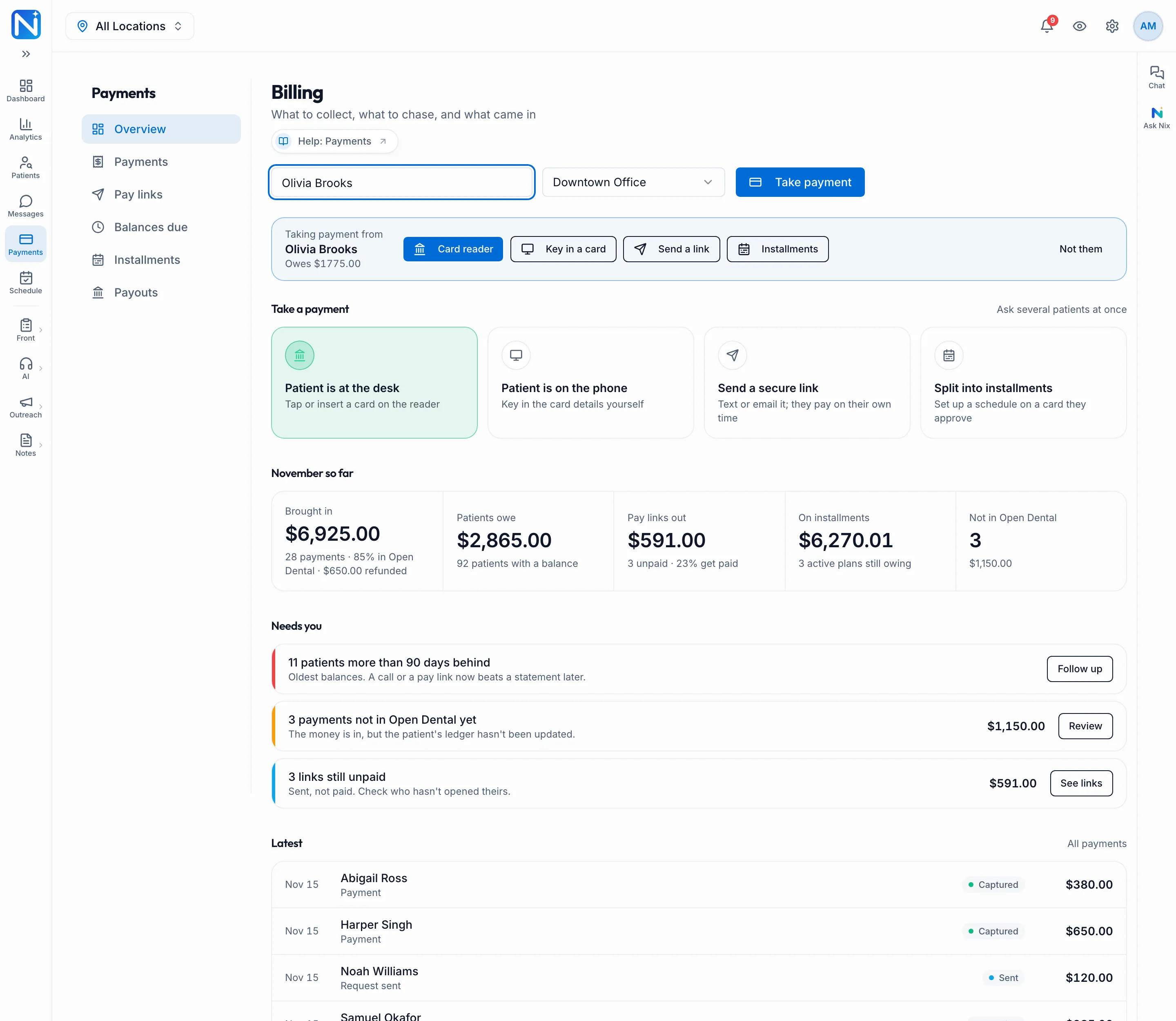
You can also start from the patient. On the patient card, click Collect. On the Patients list or in Messages, open the ⋮ menu and choose Take a payment. The patient’s name and balance are filled in for you.
Which way to use
Section titled “Which way to use”| Option | Use it when |
|---|---|
| At the desk (Card reader) | The patient is at the desk and your office has a card reader. |
| Key in a card | The patient reads you the card details, in person or over the phone. |
| Send a pay link (Send a link) | The patient isn’t at the desk. They get a link by text or email and pay on their own phone. |
| Installments | The patient will pay a total over several payments. See Payment plans. |
| Charge a card on file | The patient already has a saved card. See Cards on file. |
Send a pay link
Section titled “Send a pay link”- Choose Send a pay link.
- Search for the patient. Their balance from Open Dental is filled in as the Amount. Change it if needed.
- Check the Phone and Email, and add a Description if it helps the patient, for example “Balance from visit on 5/1”.
- Under Send via, pick SMS or Email, then click Send Link.
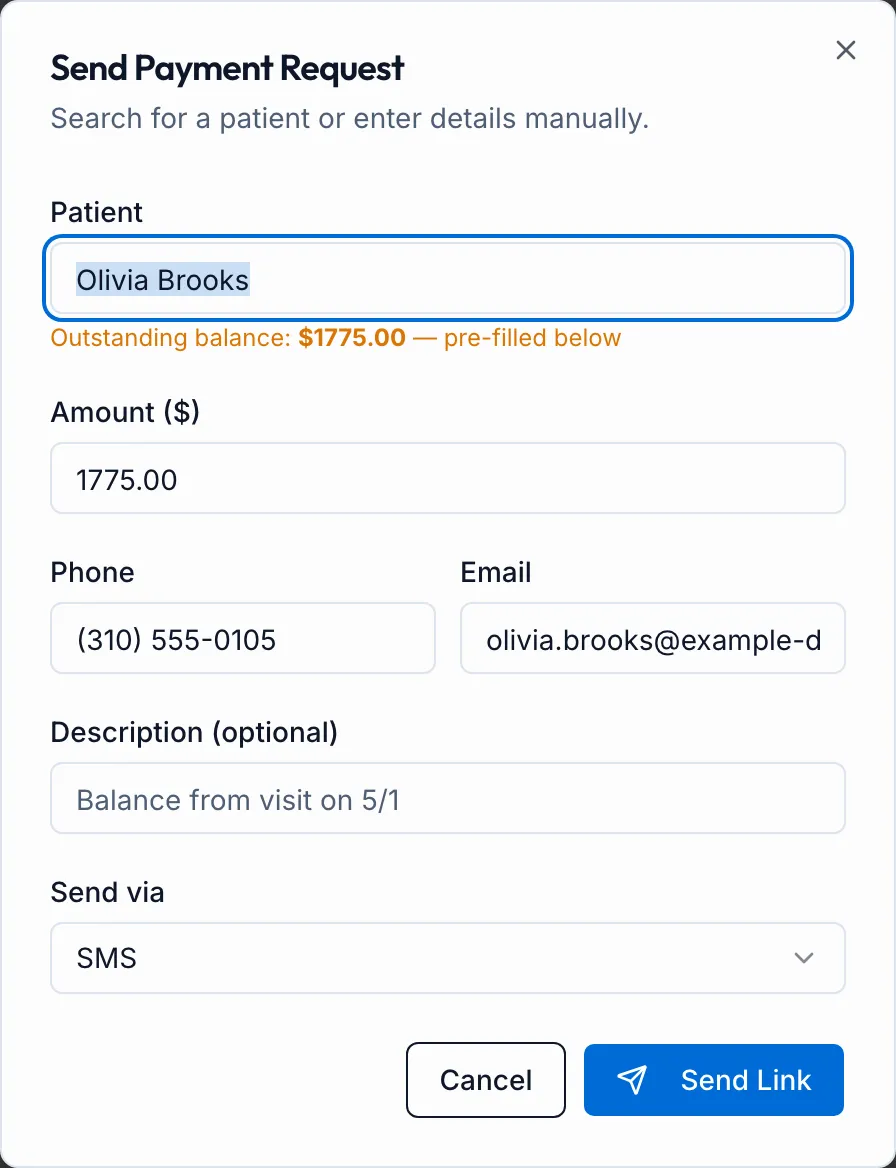
The patient opens the link, sees the amount and your office’s name, and pays by card. See What your patient sees when they pay a link. If you have their email, they’re emailed a receipt. If a card covers only part of the amount (common with health-savings cards), the payment is kept and the patient can pay the rest with another card.
If you pick SMS but the office has no texting number, the link goes by email instead.
Track links under Payments → Pay links. While a link is Pending or Sent you can Resend it or Cancel it.
Key in a card
Section titled “Key in a card”- Choose Key in a card.
- Enter the Card Number, Expiry (MM/YY), CVV, Cardholder Name and Billing ZIP.
- Check the Amount and add a Description if you like.
- Linking the Patient is optional, but without it the payment can’t be sent to their Open Dental ledger.
- Click Charge Card.
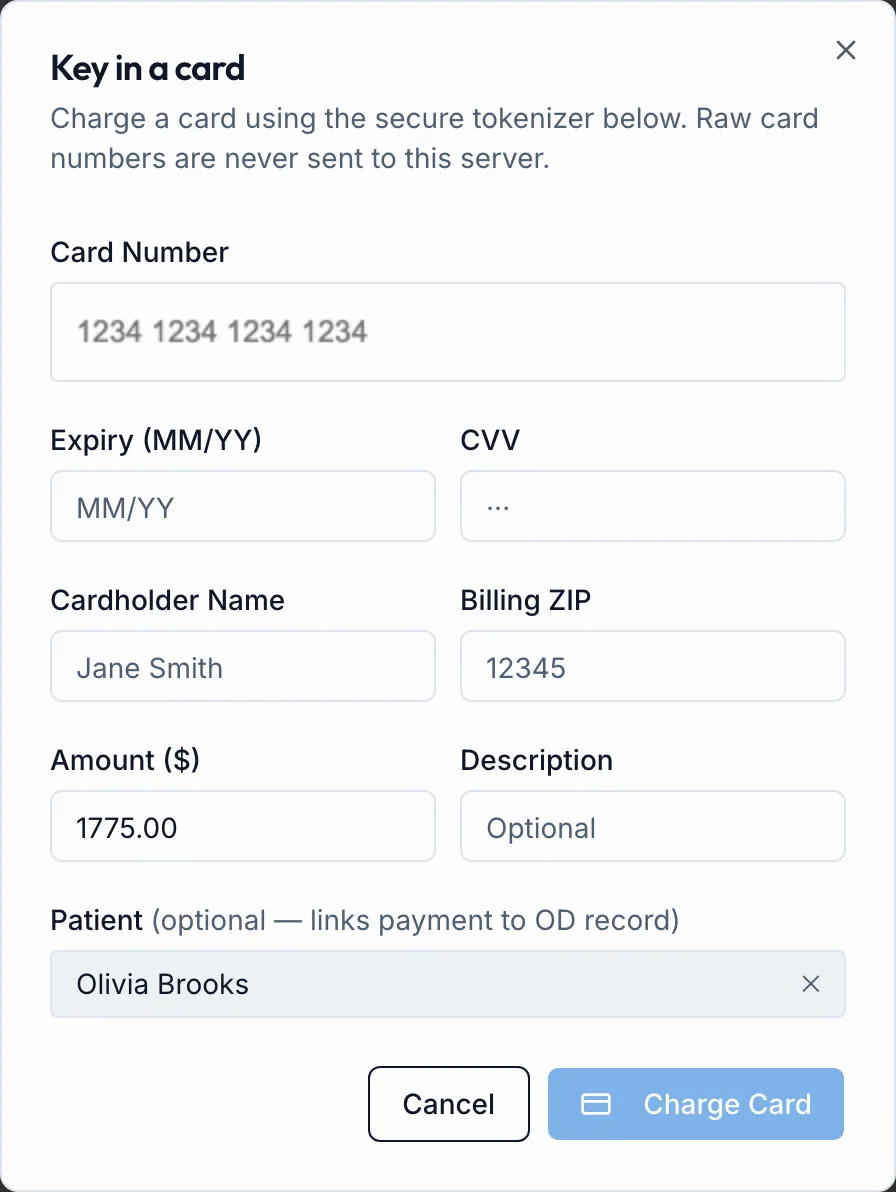
If the card is declined, you’ll see the reason on screen. The attempt is listed under Declined on the Payments page.
Use the card reader
Section titled “Use the card reader”This only works if NixDent has set up a card reader for your office.
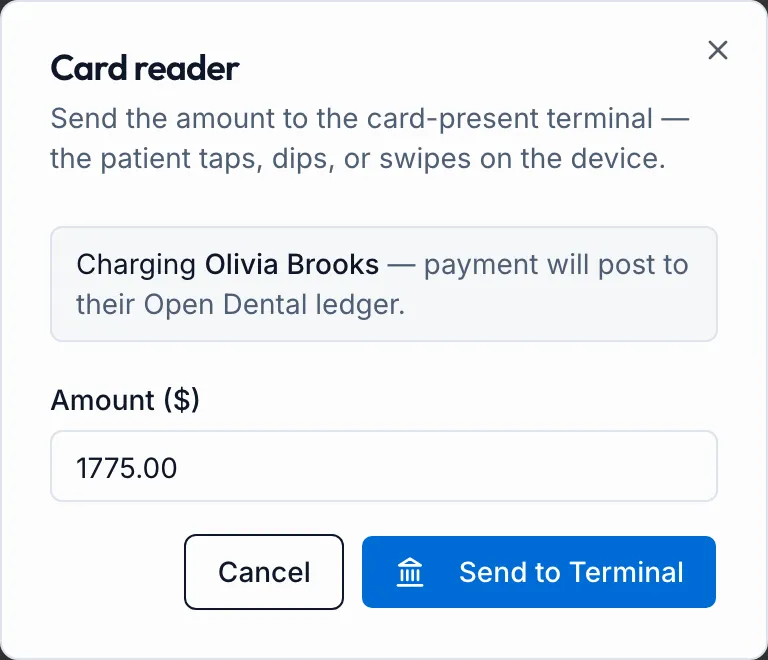
- Choose At the desk or Card reader.
- Check the Amount. If you picked a patient, you’ll see that the payment will post to their Open Dental ledger.
- Click Send to Terminal. The patient taps, inserts or swipes on the reader.
Ask many patients at once
Section titled “Ask many patients at once”- Go to Payments → Balances due. It lists every patient with a balance, oldest first.
- Tick the patients you want.
- Click Request Payment. Each patient gets a link for their own balance.
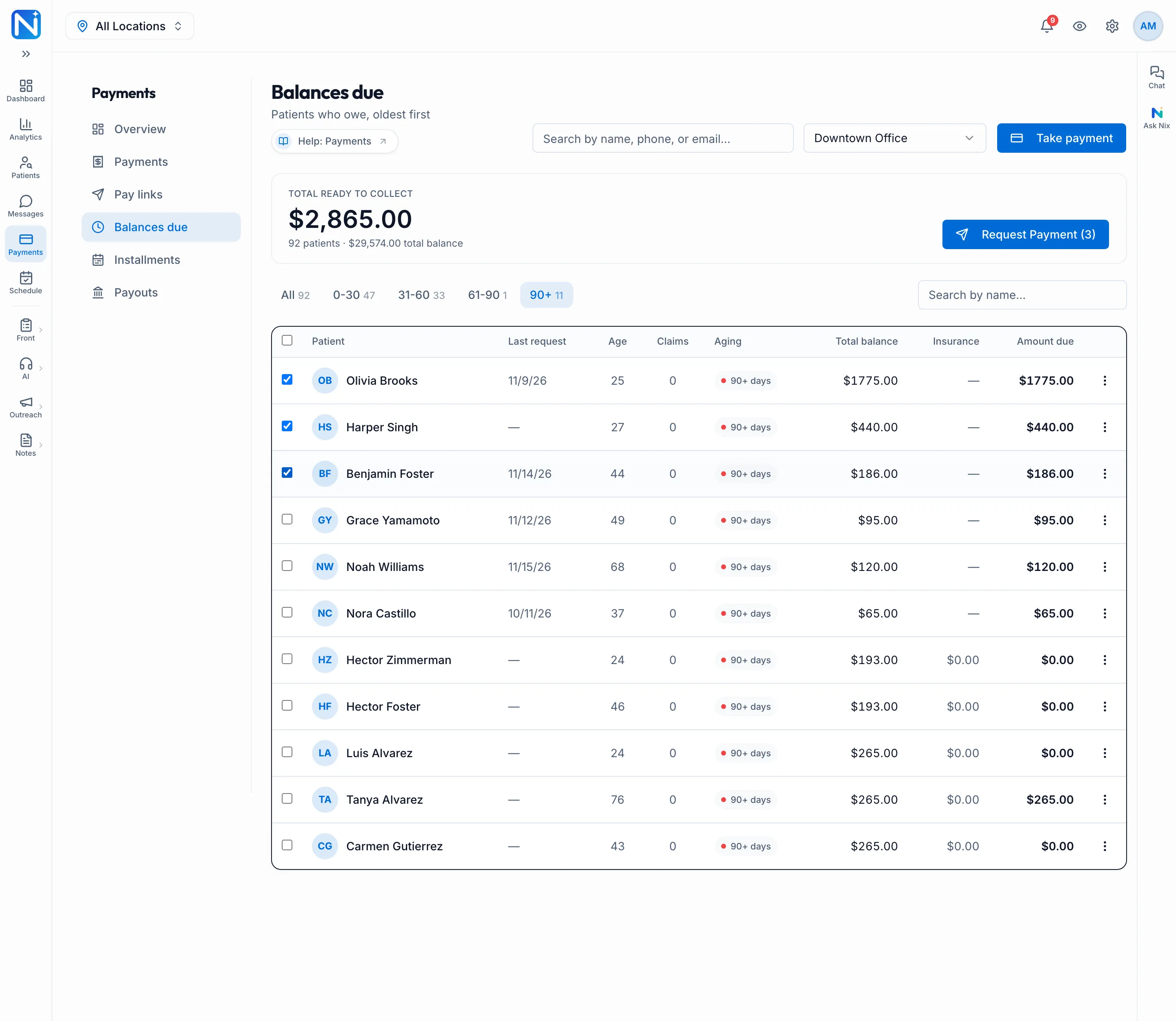
See Chase balances for the filters and the ⋮ menu. You can also open this page from the Overview: click Ask several patients at once.
After you take a payment
Section titled “After you take a payment”Most payments linked to a patient are sent to their ledger in Open Dental automatically. Anything that didn’t make it shows as Not in Open Dental on the Payments page, and in the Overview under Needs you.